Installing the Xuper TV APK takes about two minutes and needs no account, no root and no special tools. You download the 37 MB file from the Xuper TV APK download page, open it, approve one permission prompt, and tap install. The steps below cover every Android version from 5.0 upward.
Before you start
Make sure you have roughly 100 MB of free space (the file is 37 MB and Android needs working room during installation) and a stable connection so the download completes in one go. If you already have an older build of the app installed and want a clean slate, uninstall it first; otherwise you can install right over it as an update.
Step 1: Download the APK file
Open the download page on your phone and wait for the short countdown, then tap the download button. The file is served directly, so what lands in your Downloads folder is the verified build our team tested.
Step 2: Open the downloaded file
Pull down your notification shade and tap the completed download, or open your Files app and go to Downloads. Android will open its package installer and show you what the app requests.
Step 3: Allow installs from your browser
On Android 8 and newer, the system asks you to allow your browser to install apps. This is a one-time toggle: tap Settings on the prompt, flip the switch for your browser, then go back. On Android 7 and older, enable Unknown sources in Settings, then return to the installer.
Step 4: Tap Install and open the app
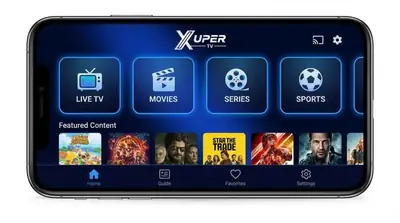
Tap Install, wait a few seconds, then tap Open. The app launches straight into its home screen with live channels, movies, series, kids and anime ready to browse. No login screen appears, because there is not one.
If something goes wrong
The two failures we see most are covered in detail elsewhere: app not installed errors (usually a signature conflict with an older copy) and Xuper TV not working at all (usually a stale download or a connection issue). Both are fixable in under five minutes.
After installation
Give the app a minute on first launch while it builds its channel list. If you plan to watch on the big screen too, the Android TV and Firestick setup guide shows how to get the same build running on your television with the remote-friendly interface.