
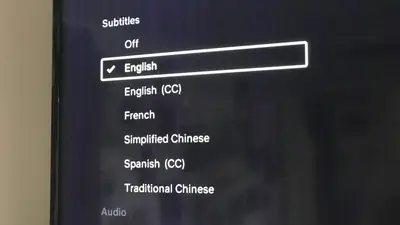
Xuper TV’s player includes multi-language subtitles with timing controls, and knowing where the controls live makes every foreign-language title more enjoyable. This guide covers enabling subtitles, switching languages, fixing sync, and audio tracks in the free app.
Enabling subtitles
During playback, open the player overlay (tap the screen on a phone, press OK or the menu button on a TV remote) and look for the subtitles or CC icon. Tapping it lists the available subtitle languages for that title; select one and it appears immediately. The choice is remembered per title.
Switching languages
The available languages depend on the title: popular movies and series typically offer several, while niche content may offer fewer. If your language is missing on a specific title, it is a catalog limitation for that title, not a broken setting; most mainstream titles are well covered.
Fixing out-of-sync subtitles
The current player includes a subtitle delay control that shifts timing forward or back in small steps, and it now responds correctly to TV remotes, not just touchscreens. Nudge in 100 to 200 millisecond steps until dialogue lines land on the spoken words; two or three taps usually does it.
Audio tracks
Where the source provides alternate audio, a track selector sits next to the subtitle control in the player overlay. Switching audio does not disturb subtitle selection, so dubbed audio with subtitles in another language is possible on supported titles.
When subtitles will not appear
First, confirm the title actually lists subtitles in the selector; not every title has them. If they are listed but not showing, force-close and reopen the app to refresh the catalog entry. Persistent issues across many titles point to a corrupt install, in which case the repair guide’s clean reinstall step resolves it.